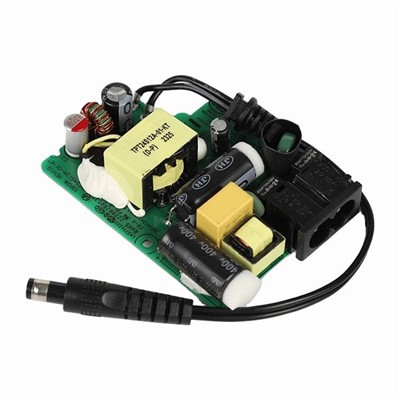

Hey there! I'm from a Telecom PSU supplier, and today I'm gonna walk you through how to install a Telecom PSU correctly. Whether you're a newbie looking to set up your first system or a seasoned pro wanting a refresher, this guide is for you.
Why Correct Installation Matters
First off, let's talk about why it's so important to install a Telecom PSU correctly. A proper installation ensures that your power supply functions at its best. It can prevent a whole bunch of issues like overheating, electrical shorts, and even system failures. Plus, a well - installed Telecom PSU can extend the lifespan of your equipment, saving you money in the long run.
Before You Start
Before you even touch the Telecom PSU, there are a few things you need to do.
Gather Your Tools
You'll need some basic tools for the installation. A screwdriver is a must - have, usually a Phillips - head one. You might also need a pair of pliers for any wiring adjustments. And don't forget an anti - static wrist strap. This helps prevent static electricity from damaging the sensitive components of the PSU.
Choose the Right Location
The location where you install the Telecom PSU is crucial. It should be in a well - ventilated area. PSU generates heat during operation, and proper ventilation helps dissipate that heat. Avoid placing it near other heat - generating devices or in a cramped space. Also, make sure the location is dry. Moisture can cause corrosion and electrical problems.
Check the Power Requirements
You need to know the power requirements of your system. Look at the specifications of all the components that will be connected to the Telecom PSU. Make sure the PSU you have can supply enough power. If you're not sure, you can use an online power supply calculator. This will give you an estimate of the power your system needs.
Unpacking the Telecom PSU
Once you've got everything ready, it's time to unpack the Telecom PSU. Carefully remove it from the box. Check for any visible damage. If you notice any dents, scratches, or loose parts, contact the supplier right away. Don't attempt to install a damaged PSU as it can be dangerous and might not work properly.
Installing the Telecom PSU
Mounting the PSU
Most Telecom PSUs come with mounting holes. Line up the PSU with the mounting holes in the case. Insert the screws through the holes in the PSU and into the case. Use the screwdriver to tighten the screws, but don't over - tighten them. Over - tightening can damage the case or the PSU.
Connecting the Power Cables
Now, it's time to connect the power cables. The Telecom PSU has different types of cables for different components. There are usually 24 - pin ATX cables for the motherboard, 4 - pin or 8 - pin EPS cables for the CPU, and SATA cables for storage devices.
Connect the 24 - pin ATX cable to the motherboard. Make sure it's properly seated. You'll hear a click when it's connected correctly. Then, connect the EPS cable to the CPU power socket on the motherboard. Again, ensure a secure connection.
For storage devices, connect the SATA cables from the PSU to the drives. These cables are easy to connect as they have a unique shape that only fits one way.
Testing the Installation
After you've connected all the cables, it's time to test the installation. But before you turn on the power, double - check all the connections. Make sure there are no loose cables or wires.
Power On
Plug in the power cord to the PSU and then to a power outlet. Flip the power switch on the back of the PSU to the “On” position. If everything is installed correctly, you should hear the fans inside the PSU start spinning. Check the motherboard LEDs to see if they light up. This indicates that power is being supplied to the motherboard.
Check for Errors
If the system doesn't start or if you notice any error messages on the screen, there might be an issue with the installation. Check the connections again. Make sure the PSU is providing the correct voltage. You can use a multimeter to test the voltage if you're experienced with using one.
Troubleshooting Common Issues
No Power
If the system doesn't power on at all, first check the power outlet. Make sure it's working by plugging in another device. Then, check the power cord connections to the PSU and the outlet. If everything seems fine, there might be an issue with the PSU itself. Contact the supplier for further assistance.
Overheating
If the PSU starts overheating, check the ventilation. Make sure the fans are working properly. You can clean the fans and the vents to remove any dust or debris. If the problem persists, it could be a sign of a faulty PSU.
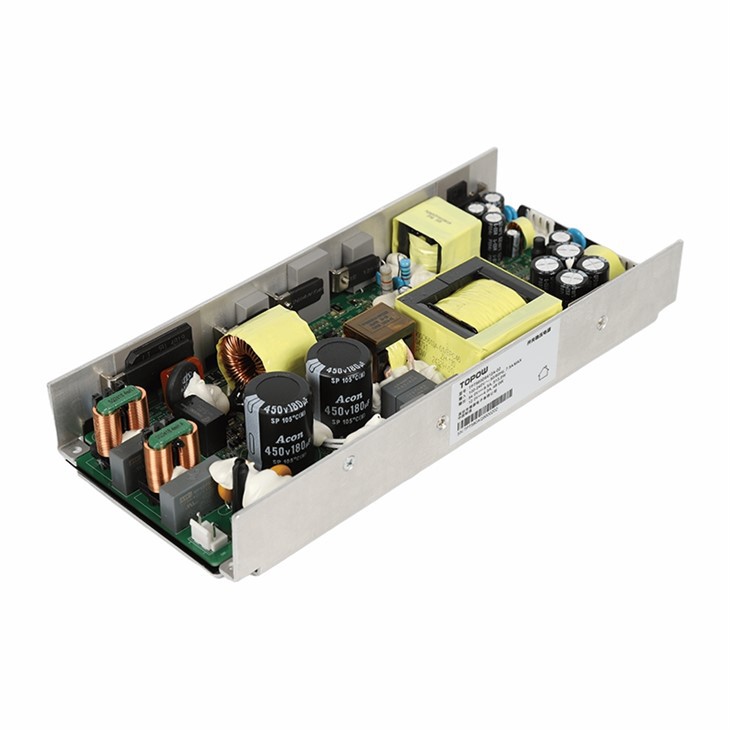

Related Products
If you're interested in other power supply products, we also offer some great options. Check out our Heavy - Duty Switching Power Module and Server - Grade Power Supply Board. These products are designed to meet the high - performance needs of various systems. And of course, our Telecom PSU is a reliable choice for telecom systems.
Conclusion
Installing a Telecom PSU correctly is not as hard as it might seem. By following these steps, you can ensure a smooth installation and a well - functioning power supply. If you have any questions or need further assistance, don't hesitate to reach out to us. We're here to help you make the most of your Telecom PSU. Whether you're looking to upgrade your current system or building a new one, we've got the right products for you. Contact us to start the procurement process and discuss your specific needs.
References
- General knowledge of power supply installation from industry experience.
- Manufacturer's manuals for Telecom PSU.