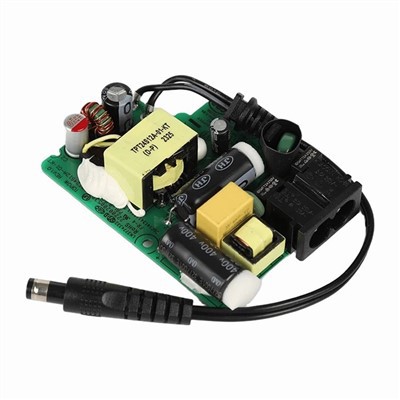

If you're a desktop user, you've likely encountered the situation where your desktop power adapter gets hot. This can be a cause for concern, especially if you're not sure what's causing it or how to address it. As a desktop power adapter supplier, I'm here to share some insights on why this happens and what you can do about it.
Why Does a Desktop Power Adapter Get Hot?
Before we dive into solutions, it's important to understand why your power adapter might be heating up. There are several common reasons for this phenomenon:
1. High Power Consumption
Desktop computers, especially those with high - performance components like powerful CPUs and GPUs, require a significant amount of power. When your desktop is running resource - intensive tasks such as gaming, video editing, or running virtual machines, the power adapter has to work harder to supply the necessary electricity. This increased workload can lead to heat generation. For example, our 150w Power Adapter is designed to handle high - power demands, but if your system is pushing its limits constantly, it can still heat up.
2. Poor Ventilation
Power adapters are designed to dissipate heat through ventilation holes. If these holes are blocked by dust, debris, or if the adapter is placed in an enclosed space, heat cannot escape effectively. This causes the temperature inside the adapter to rise. For instance, if you place your power adapter under a stack of papers or in a tight corner, it restricts the airflow and traps the heat.
3. Aging or Faulty Components
Over time, the internal components of a power adapter can wear out. Capacitors may lose their ability to store and release energy efficiently, and resistors can develop higher resistance, which in turn generates more heat. A faulty component can also cause an electrical short - circuit, leading to excessive heat production.
4. Environmental Factors
The ambient temperature of the environment where the power adapter is used can also affect its temperature. If you're using your desktop in a hot room or in direct sunlight, the power adapter will have a harder time dissipating heat, and its temperature will rise.
What Should You Do If Your Desktop Power Adapter Gets Hot?
Now that we understand the possible causes, let's look at some steps you can take to address the issue:
1. Check the Ventilation
First, inspect the ventilation holes of your power adapter. If they are blocked by dust, use a can of compressed air to blow out the debris. Make sure to hold the can upright and keep a safe distance from the adapter to avoid any damage. Also, ensure that the adapter is placed in an open area with good airflow. Avoid covering it with objects or placing it in a confined space.
2. Reduce the Power Load
If your power adapter is getting hot due to high power consumption, try reducing the load on your desktop. Close any unnecessary applications and processes running in the background. For example, if you're not using your webcam, microphone, or other peripheral devices, disconnect them. This will reduce the overall power demand on the adapter and help it cool down.
3. Replace Faulty Components
If you suspect that a component in your power adapter is faulty, it's best to have it checked by a professional technician. They can diagnose the problem and replace the defective parts. However, if your power adapter is still under warranty, contact the manufacturer or the supplier for repair or replacement. As a supplier, we offer reliable after - sales service and can assist you in getting your power adapter fixed or replaced.
4. Upgrade Your Power Adapter
If your current power adapter is constantly overheating even after taking the above steps, it might be time to upgrade to a higher - wattage adapter. A more powerful adapter can handle the power demands of your desktop more efficiently and generate less heat. We offer a wide range of power adapters, including the 150w Power Adapter, which is suitable for high - performance desktops.


5. Monitor the Temperature
You can use a thermal imaging camera or an infrared thermometer to monitor the temperature of your power adapter. This will help you keep track of any abnormal temperature increases and take appropriate action before it causes any serious damage.
Preventive Measures
To avoid the problem of a hot power adapter in the first place, here are some preventive measures you can take:
1. Regular Maintenance
Perform regular maintenance on your power adapter. Clean the ventilation holes every few months to prevent dust buildup. You can also use a soft brush to gently remove any debris from the surface of the adapter.
2. Choose the Right Adapter
When purchasing a power adapter, make sure to choose one that is compatible with your desktop's power requirements. Consider the wattage, voltage, and amperage ratings of your desktop components. Our team of experts can help you select the most suitable power adapter for your needs. We offer a variety of options, including Wifi Router Power Adapter and Home Use Desktop Power Adapter.
3. Optimize Your Desktop Setup
Arrange your desktop setup in a way that promotes good ventilation for the power adapter. Keep it away from heat sources such as radiators and direct sunlight. Also, make sure that the cables are not tangled, as this can restrict airflow around the adapter.
Contact Us for Your Power Adapter Needs
If you're experiencing issues with your desktop power adapter or are looking to purchase a new one, we're here to help. As a trusted desktop power adapter supplier, we offer high - quality products at competitive prices. Our power adapters are designed to meet the highest standards of safety and performance.
Whether you need a power adapter for your home desktop, office computer, or a high - end gaming rig, we have the right solution for you. Our team of professionals can provide you with technical support and guidance to ensure that you get the best power adapter for your specific requirements.
Don't let a hot power adapter disrupt your work or gaming experience. Contact us today to discuss your power adapter needs and start a procurement negotiation. We look forward to serving you and helping you keep your desktop running smoothly.
References
- "Power Supply Design Handbook" by Marty Brown
- "Electronics for Dummies" by Gordon McComb